
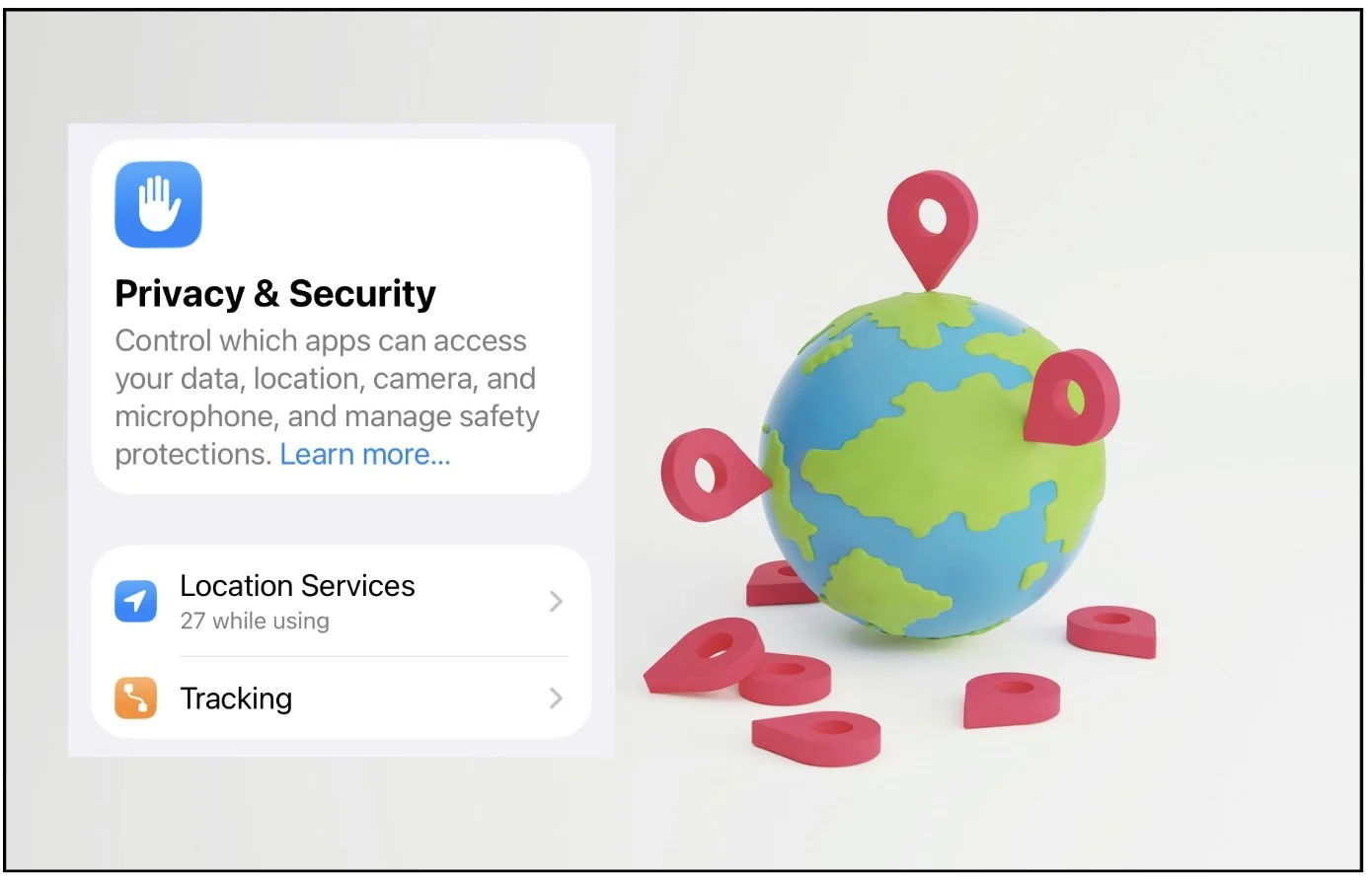
Many apps will track the location of a digital device even when they’re not open. Most apps don’t need to know your location—but they track it because your data is valuable. You can block them in a couple easy steps.
The GPS built into your digital device can be an incredibly helpful tool when you need navigational help or weather information. But many apps that have seemingly zero need to know your location are also tracking you. And if you’re a parent whose kids use apps, they’re tracking their location too.
Here’s the critical part: Many of the apps on your phone are tracking your location even when you’re not using the app. They just sit there quietly in the background, gathering data on your location as you—or your kids—move about the day.
It’s easy to disable geotracking for the apps that don’t need it while keeping it for a few apps where it makes sense. We’ll show you how.
Why geotracking and location privacy matter
The ability to track the location data of a child poses significant risks, including compromising their physical safety and mental well-being. A single post with geotagging or live location could reveal where your child lives, goes to school, and spends time.
Your child’s location isn’t just a dot on a map. It’s part of their identity, routine, and security. By taking these steps to intentionally manage location sharing and teaching children about digital boundaries, parents can help their kids navigate online spaces more safely and confidently.
Limit or block specific apps
For some apps, like Google Maps or a rideshare service, geolocation is necessary to make the app function. In those cases you can set the privacy level to allow geolocation only while using the app. That way it’s not tracking your child’s device all the time.
For iPhone:
On your iPhone, open Settings → open Privacy & Security → open Location Services → set each individual to “Never” or “While Using the App.”
Also: In ‘Privacy & Security,’ open Tracking. Toggle the “Allow Apps to Request to Track” to off.
For Android:
On your Android, open Settings → open Location → set each App to “Not allowed” or “Allowed only while in use.”
You will still be able to “find my” device
Taking the steps outlined above will not affect the helpful “find my” app that allows you to locate your missing phone. You can turn that off, too, if you like—on iPhone—by going to the same “Location Services” page, select “Share My Location,” and select “Find My iPhone,” and then turning it off.
more resources
· Snap Map and Child Tracking: The privacy challenges.
· Consumer Reports: Should you track your child with a GPS tracker or smartwatch?
· The Screentime Consultant: Tracking your kids.
· PubMed study: Mobile apps and children’s privacy.